Rental product type
Sales · Rental
Rental product type
Odoo allows for two product types when configuring a rental product: Goods or Services.
A rental Goods product is a physical item, such as a computer, vehicle, bike, camera, or an item of clothing. Goods are removed from the company’s stock, delivered to the customer, and then returned to the company.
A rental Service can be labor or something non-physical, such as installation, photography, or a deposit. It can also be a physical item that never leaves the company’s stock, such as a hotel room, work station, or storage unit.
The following sections detail basic settings and app integration configurations for Goods and Services.
Settings
Important
For the Default Padding time and Rental Transfers settings, the Inventory app must be installed. For the Rent Online section settings, the eCommerce module must be installed.
To configure default settings on rental products, navigate to .
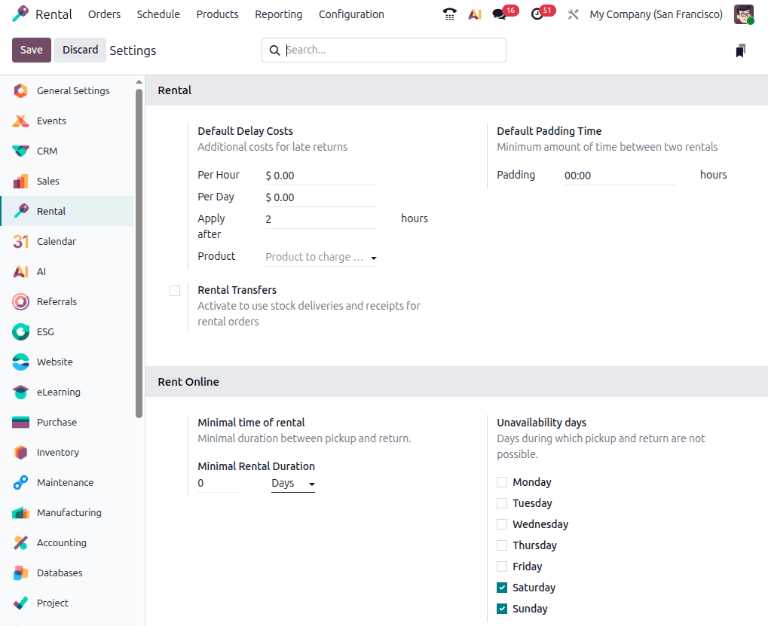
In the Rental section, the Default Delay Costs subsection is used to set up late fees. These are the base settings that come with the Rental app installation. To apply delay costs and times to rental products, fill in the:
Per Hour: The late fee amount is applied each hour the rental product is past due.
Per Day: The late fee amount is applied each day the rental product is past due.
Apply after: The number of hours necessary to trigger a late fee.
Product: Limit the default delay costs setting to one product from the field’s drop-down list. Leave the Product field blank if the defaults apply to all products.
If the Inventory app is installed, the Default Padding Time section displays. The time inputted into the Padding field blocks a rental product from being available for reservations. The setting is set to an hourly unit.
Note
For more control, configure the costs for late returns and padding time in the Hourly Fine, Daily Fine, and Reserve product fields on the product form.
The Rental Transfers checkbox enables automatic creation of delivery and return receipts for a rental product. This feature also needs the Inventory app to be installed.
Note
The Inventory app automatically creates an internal default location once the
Rental Transfers feature is enabled. Odoo uses the new default location,
Customer/Rental, to track products during the rental period (moving them from Stock to
Customer/Rental upon rental, and back upon return). Do not modify this location to avoid
corrupting inventory tracking.
If the eCommerce module is installed, the Rent Online section is available to configure. The Minimal time of rental section contains:
Minimal Rental Duration: The minimum duration of time a rental product must be booked. The available units of time are: Hours, Days, Weeks, and Months.
Unavailability days: Designated days that are not available for online rental pick ups or returns.
Click Save to apply the changes.
App integration configuration
The Rental app relies on additional Odoo app integrations to expand its settings and product configurations. The following apps are essential for workflow efficiency and automation when creating a product and rental order:
Sales: Enables online payments and signatures, uses quotation templates, variants, and PDF Quote Builder.
Sign: Allows uploading and customization of various rental and service agreements. These documents are used to facilitate the Request Signature feature.
Planning: Integrates with the Rental app to automatically match service products with employees or materials based on availability. This setting is configured on the product form.
Project: Integrates with the Rental app to automatically creation of a project, a task, or both when a rental quote that includes the configured product is confirmed. This setting is configured on the product form.
Inventory: Enables warehouse delivery and return receipts, product tracking options, variants, and product downtime.
eCommerce: Allows product configuration for the online shop. This setting is configured on the product form.
Search for rental products
To view all products available for rent in the database, navigate to . By default, the Rental filter appears in the search bar, and the view is Kanban. Remove the filter, then click the search bar. From the preset filters, select Goods, Services, or both.
All the selected options appear as Kanban cards. For Goods, the card displays the name, rental rate, and amount on hand. For Services, the card displays the name, the number of variants if configured, and the rental price.
Rental periods
A rental period is the unit of time used to calculate the rental rate. This setting is configured on the Rental prices tab on the product form. To edit a default rental rate, navigate to .
Select a rental period to open the Period form. With the exception of the Nightly rental period, all period forms have the following fields:
Name: A short description or title for the period.
Duration: The minimum amount of time before the rule is applied. Set to
0to represent a fixed rental price.Unit: A drop-down list of time periods the shortest being Hours and the longest is Years.
To create a new rental period, click New.
Nightly rental period
The Nightly rental period form replaces the Duration field with two new fields Check-in and Check-out. Both fields use a 24-hour clock to set the time. This setting is recommended for space or storage rentals that require specific times to begin and end the rental period.
Adapted from the Odoo 19.0 User Documentation for DigitsCode customer support. © Odoo S.A. DigitsCode capabilities remain in the DigitsCode Capabilities category.