Add a PDF or a URL to a product
Sales · Sales
Add a PDF or a URL to a product
The Odoo Sales app lets users add a custom PDF or URL to a product template or variant using the PDF Quote builder. By attaching a PDF or a URL, users can include extra information or resources in their quotes, online product pages, or for manufacturing.
Add a PDF or URL to a product template
To add a custom PDF to a product template, go to the , and select the desired product. Next, click the Documents smart button at the top of the product template page.

Click Upload to open the user’s local file directory then select and upload a PDF to Odoo. Odoo automatically creates a PDF document form from the uploaded PDF, with the Sales Visibility set to Hidden and the Publish on website toggle disabled by default. Click the (vertical ellipsis) icon in the corner of the document card and select Edit to further configure the PDF form.
Click New to open a blank PDF form and manually configure the document form.
Add a PDF or URL to a product variant
A PDF document or URL can also be added to a product variant, rather than the product template. The document form for the product variant is the same as the product template’s document form, except it doesn’t include the E-Commerce section and thus cannot be published on the website.
To add a PDF to a product variant, navigate to the , select the product variant, click the Documents smart button, and upload the PDF.
Note
If the variant is added to a quotation, and there are documents on a product and on its variant, only the documents in the variant are shown in the Quote Builder tab of the quotation.
Document form configuration
Important
To save a document form entry, the user must add a URL or PDF to the document form. Odoo won’t save the entry without one, even if the rest of the form is configured.
General Information
Fill out the following information in the top section of the document form:
Type: Select either File or a URL from the drop-down menu. If a PDF is uploaded, the Type field is automatically set to File and cannot be changed.
URL: This field is only clickable if the Type field is set to URL. Enter a URL link to an online PDF document.
Name: This field is grayed out (not clickable) until a URL is entered or a PDF is uploaded. If the URL is entered, the Name field is left blank, and it can then be edited. If a PDF document has been uploaded, the Name field is auto-populated with the file name, and it can then be edited.
File Content (base64): This field displays the uploaded file. Click it to open the file directory and select a different PDF.
(Edit) icon: Click to open the file directory and select a different PDF.
(Download) icon: Click to download the PDF document. This icon only appears after a PDF is uploaded and the document form is saved.
(Delete) icon: Click to remove the uploaded PDF. This action allows the user to change the Type field from File to URL and enter a URL link instead.
Configure dynamic fields: Click the link if the PDF document or URL has dynamic form fields that need to be configured to Odoo fields. If the PDF document or URL has custom dynamic form fields, refer to the Configure custom dynamic form fields for more information.
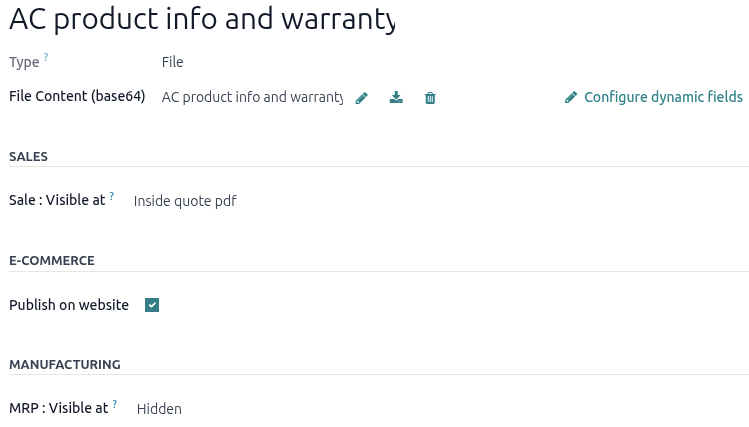
Sales section
Click the Sale: Visible at field and select one of the following options:
Hidden: The PDF or URL isn’t visible in the Sales app. This option is best for digital product documents intended for publication on the website, but not shown in the quotation or customer portal.
On quote: The PDF document or URL can be sent to customers at any time. It is also available for download on the customer portal. This options is best for product description files.
On confirmed order: The PDF document or URL is sent to customers upon order confirmation. It is available on the customer port after a quotation is confirmed. This is best for user manuals and digital content sold on eCommerce websites.
Inside quote: The PDF document or URL is included in the PDF quotation, between the header pages and the Pricing section.
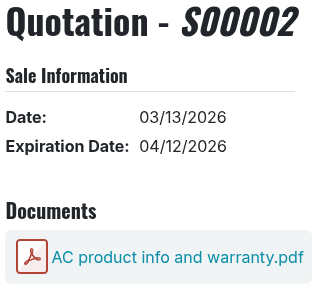
Example
When the On quote option for the Visible at field is selected and the
custom PDF document, AC product info and warranty.pdf, is uploaded, the PDF appears in the
customer portal quotation in the Documents section.
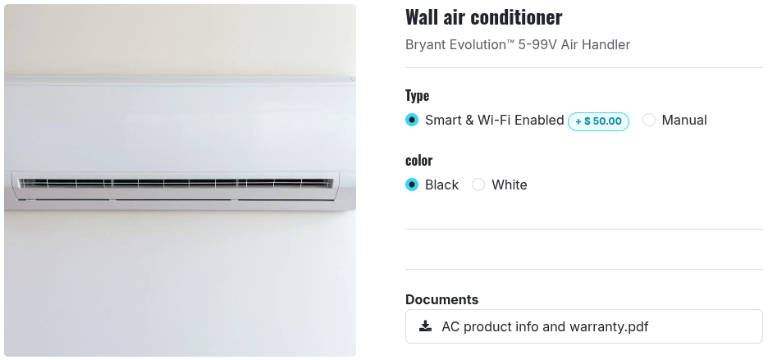
E-Commerce section
Publish on Website: A checkbox that, if enabled, displays a link to download the PDF document on the product page in the online store.
Manufacturing section
Important
This section only appears if the Manufacturing app is installed.
Click the Sale: Visible at field and select one of the following options:
Hidden: The PDF or URL is accessible only on the product form.
Bill of Materials: The PDF or URL is attached to the bill of materials when the product is manufactured. This option is best for assembly instructions and manufacturing specifications.
View all configured PDFs or links for a product
Navigate to the and select a product. Click the Documents smart button to open the Documents page and display all the documents for the product template and its variants. File and URL cards can be visually distinguished by the images in the left corner. A PDF thumbnail is for PDF documents, and a link icon is for URL links. For product variants documents, a Variant badge is to be displayed in the corner as well.

Adapted from the Odoo 19.0 User Documentation for DigitsCode customer support. © Odoo S.A. DigitsCode capabilities remain in the DigitsCode Capabilities category.