Import products
Sales · Sales
Import products
The Odoo Sales app provides a template for importing products with categories and variants, which can be opened and edited with any spreadsheet software (Microsoft Excel, OpenOffice, Google Sheets, etc.) A properly formatted spreadsheet can be uploaded to an Odoo database. Within minutes, all the products and their variants are live within Odoo and accessible in the product catalog.
Download template
To import products with categories and variants, download the Import Template for Products. Once downloaded, the template can be adjusted and customized, then uploaded into an Odoo database.
To download the template, navigate to . On the Products page, click the (Action) icon in the upper-left corner. From the drop-down menu, select the Import records option.
Selecting Import records opens a new page with an Import Template for Products link to download the template. Once downloaded, open the spreadsheet file to customize it.
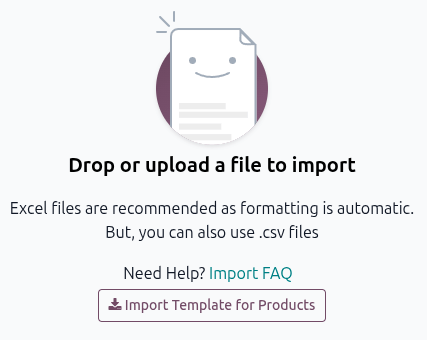
Common product import template considerations
When modifying the product import template, keep in mind the following:
Unnecessary columns may be removed.
Keeping the Internal Reference column is recommended.
Having a unique identifier (e.g.,
FURN_001) for each product in the Internal Reference column can be helpful in many cases. This number can even be reused from previous software spreadsheets to ease the transition into Odoo. For example, when updating imported products, the same file can be imported several times without creating duplicates.Do not change the labels of columns that are meant to be imported. Otherwise, Odoo won’t recognize them, requiring them to be configured manually on the import screen.
New columns may be added to the template spreadsheet, if desired. However, newly added columns must exist in Odoo. If Odoo can’t match a column’s name with a field, it can be matched manually during the import process.
When importing a completed template, Odoo displays a page showing all the elements of the newly configured product template spreadsheet separated by File Column, Odoo Field, and Comments. To manually match a column name with a field in Odoo, click the Odoo Field drop-down menu next to the File Column that needs a manual adjustment and select the appropriate field.
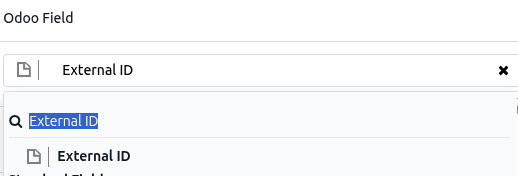
Import product template spreadsheet
After customizing the product template spreadsheet, return to the Odoo product import page, where the template download link is found, and click the Upload File button in the upper-left corner. A pop-up window appears where the completed product template spreadsheet file can be selected and uploaded to Odoo.
After that, Odoo displays a page that shows all the elements of the newly configured product template spreadsheet, organized by File Column, Odoo Field, and Comments.
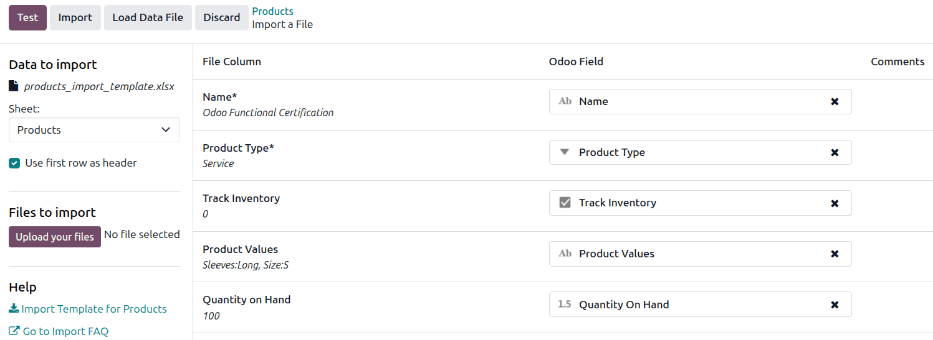
From here, the File Column can be manually assigned to an Odoo Field, if necessary.
To ensure everything is appropriate and that all the columns and fields are aligned correctly, click the Test button in the upper-left corner. If everything is lined up and applied correctly, Odoo displays a blue banner at the top of the page that reads Everything seems valid. If there are any errors, Odoo displays a red banner at the top of the page with instructions on where to locate the specific issues and how to fix them. Once those errors are fixed, click Test again to ensure all necessary issues have been remedied appropriately.
If additional product template spreadsheets need to be uploaded, click the Load Data File button, select the desired template, and repeat the process.
When everything is ready, click the Import button. When clicked, Odoo instantly imports those products and reveals the main Products page, with a pop-up message in the upper-right corner. This pop-up message informs the user how many products were successfully imported.
At this point, all the newly imported products are accessible and editable on the Products page.
Import relation fields, attributes, and variants
It’s important to note that an item in an Odoo database always has connections to other items. For example, a product is linked to product categories, attributes, vendors, and related information. These links/connections are known as relations.
Note
To import product relations, the records of the related object must be imported first from their own list menu.
Relation fields
In Odoo, product forms include several fields that can be modified and customized at any time. These fields are available on every tab of a product form. While these fields can be edited directly on the product form, they can also be modified via a product import. Relation fields of this nature can only be imported for products if the fields already exist in the database. For example, if a user attempts to import a product with a Product Type, it must be one of the preconfigured product types in the database (e.g., Tracked Product, Untracked, etc.).
To import information for a relation field on a product import template spreadsheet, add the name of the field as a column name/title on the spreadsheet. Then add the desired relation field option on the appropriate product line. When all desired relation field information has been entered, save the spreadsheet and import it to the database. Go to the . On the Product page click the (Action) icon and select .
Once the spreadsheet with the newly-configured relation field information has been uploaded, click Import, and Odoo returns to the Products page. The new information can be found on the Products page.
Attributes and values
Odoo supports importing attributes and values for both pre-existing and newly imported products. Attributes and values must be uploaded through a separate spreadsheet or CSV file before they can be applied to other products.
The column names/titles for the attributes and values spreadsheet should be: Attribute, Display Type, Variant Creation Mode, and Values / Value.
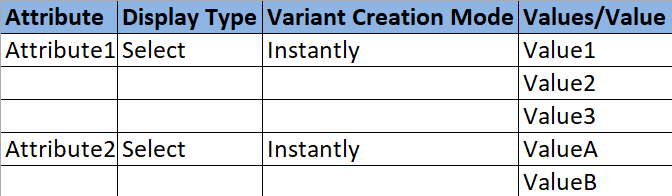
Attribute: The name of the attribute (e.g.,
Size).Display Type: The display type used in the product configurator. There are three display type options:
Radio: Values displayed as radio buttons.
Selection: Values displayed in a selection list.
Color: Values denoted as a color selection.
Variant Creation Mode: The way variants are created when applied to a product. This option cannot be changed once the attribute has been changed on at least one product. There are three variant creation mode options:
Instantly: With this option, all possible variants are created as soon as the attribute and its values are added to a product.
Dynamically: With this option, each variant is created only when its corresponding attributes and values are added to a sales order.
Never: With this option, variants are never created for the attribute.
Values/Value: Values pertaining to the corresponding attribute. If there are multiple values for the same attribute, they need to be on separate lines in the spreadsheet.
Once the desired attributes and values have been entered and saved in the spreadsheet, the sheet may be imported and uploaded to Odoo. To do that, navigate to . On the Attributes page, click the (Action) icon and select .
Once the spreadsheet with the newly-configured attributes and values has been uploaded, click Import to load the Attributes page and review and edit the newly added attributes.
Product variants
Before importing product variants, it’s best to set up their product attributes with the desired display type, creation mode, and values. Attributes with names that are not found during the import process are instead created with default values. Attribute values that are not found are also automatically created and added to the first corresponding attribute by name. Duplicated attribute names may cause issues during this process.
Example
The minimal amount of information to import product variants is as follows.
The Name column defines the product template name and is used to group all the variants with the same name under a unique product template.
The Product Values column defines the product template name and is used to group all the variants with the same name under a unique product template.
Name |
Product Values |
|---|---|
Odoo polo |
Sleeves: Long, Size: S |
Odoo polo |
Sleeves: Long, Size: M |
Odoo polo |
Sleeves: Short, Size: S |
Odoo polo |
Sleeves: Short, Size: M |
Odoo polo |
Sleeves: Short, Size: L |
Important
Commas cannot be used in attribute and value names since they are used by the database to separate items from each other.
When product attributes and values are configured in the database, they can be used in product import spreadsheets to add more information and detail to imported products.
To import products with product attributes and values, the product import template spreadsheet must be configured with specific Product Attributes / Attribute, Product Attributes / Values, and Name columns. These specific columns are required to import products with specific variants properly.

Name: The product’s name.
Product Attributes / Attribute: The name of the attribute.
Product Attributes / Values: The values pertaining to the corresponding attribute.
Tip
To import multiple values, separate them with a single comma (not a comma followed by a
space) in the product import template spreadsheet (e.g., furniture,couch,home).
When the desired products and product variants have been entered and saved in the spreadsheet, they can be imported into Odoo. To do that, navigate to . On the Products page, click the (Action) icon and select .
Once the spreadsheet with the newly-configured products and product variants has been uploaded, click Import. Odoo loads the Products page, where the newly added products can be found.
To view and modify the attributes and variants on any products, select the desired product from the Products page, and click the Attributes & Variants tab.
Example
A furniture company wants to import their existing product list into Odoo Sales app. Several of the company’s products have different variations:
Customizable Desk
Color: White, Black
Legs: Wood, Steel
Stool
Color: Green, Navy
Seat: Leather, Wood
In the template, the Customizable desk and Stool are in the Name column with Color, Legs, and Seat in the Product Attribute/Attribute column. White, black, wood, steel, and leather are all in the Product Attribute/Value column.

Importing products and product variants from files
Files with product information can be imported from both the Product menu and the Product Variants menu. By default, Odoo splits large files into batches of 2,000 rows. For variant imports, all variants of the same template must be imported in the same batch. To ensure that no products are missed, set the import batch size to a greater amount than the number of products to import.
See also
Adapted from the Odoo 19.0 User Documentation for DigitsCode customer support. © Odoo S.A. DigitsCode capabilities remain in the DigitsCode Capabilities category.