Shop Floor time tracking
Supply Chain · Manufacturing
Shop Floor time tracking
By signing in to the Odoo Shop Floor module as operators, employees are able to track the amount of time they spend working on each work order. Odoo tracks the time it takes to complete each work order as well as the time each operator spends on each work order.
Manage operators
When the Shop Floor module is first opened, the employee profile that is signed in to the database is automatically signed in as an operator.
All operators for the current session are listed in the operator panel on the left side of the screen. While the panel can list multiple employee profiles, only one employee can be active at once. The active profile highlighted in the operator panel is used for time tracking.
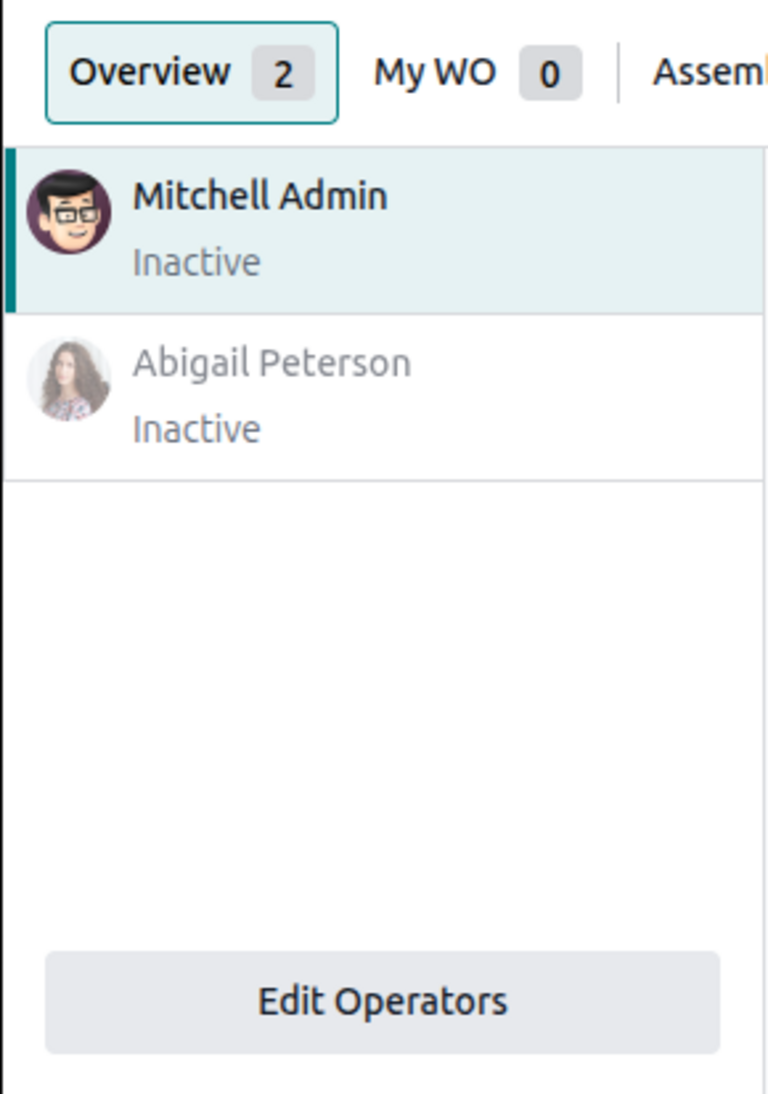
Add an operator
To add employees to the operator panel, click the Edit Operators button at the bottom of the panel. In the Edit Operators pop-up window, select the employees that should be added as operators for the current session, then click Done.
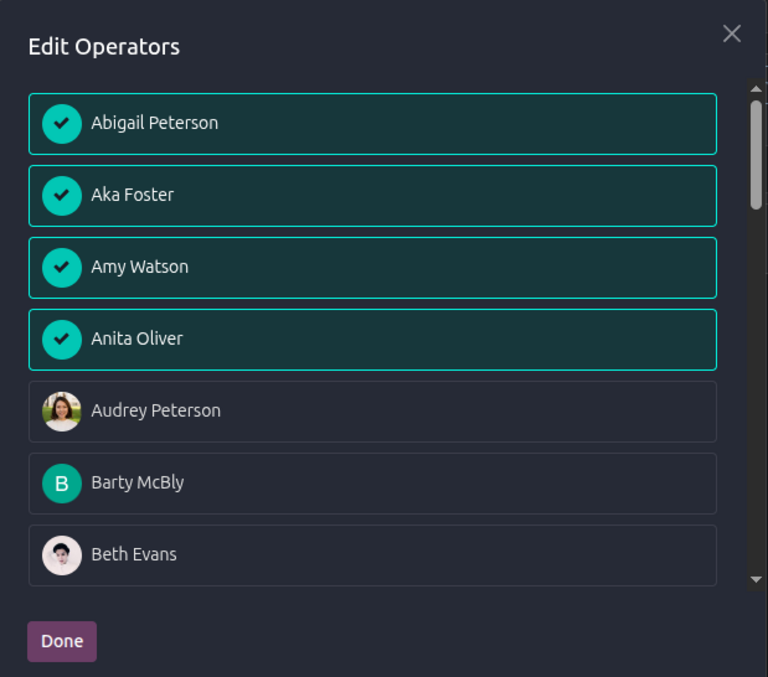
Switch profiles
To sign in to Shop Floor as a different employee, click their name in the operator panel to sign in using their profile. If a PIN has not been set for the employee, the profile is signed in automatically. If a PIN has been set for the employee, an Enter your pin pop-up window appears. Enter the code using the number pad or keyboard, then click Confirm to sign in to the Shop Floor module.
See also
Each employee can be assigned a PIN, which must be entered when signing in to the Shop Floor module. Badges can also be generated and printed for checking in and out with Kiosk Mode in the Attendances app. See the employee settings section to learn more.
Remove an operator
To remove employees from the operator panel, click the Edit Operators button, and click the profiles that should be removed from the panel. Confirm that the profiles have been unchecked, then click Done.
Track work order duration
To track the time spent on a work order, select the work center where the work order is scheduled to be carried out. This can be done by selecting the work center from the top of the page in the Shop Floor module or by clicking the name of the work center in the form for the manufacturing order (MO) that the work order is a part of.
When work begins, click the Start button on the work order card to start tracking the duration. The Start button is replaced by a timer which displays the total duration that all operators have spent on the work order.
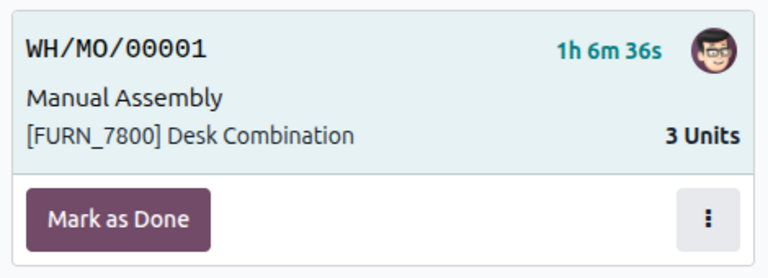
View active profile work orders
The operator panel displays the work center location and individual time spent for each work order an operator is working on. This timer only reflects work done during the current session, even if the operator has previously worked on the work order.
Operators can work on multiple work orders simultaneously and track their time for each. Click My WO at the top of the page to see all of the work orders the active profile is working on.
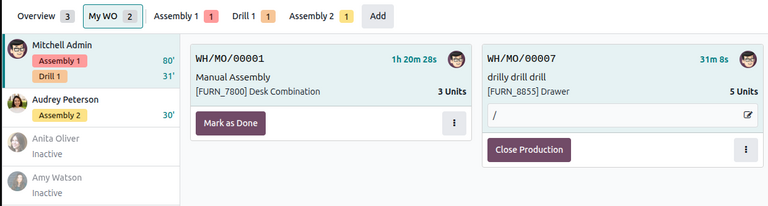
Pause and stop timer
To pause the timer on a work order, click the work order card a second time.
Once a work order is complete, click the Mark as Done button at the bottom of the work order card, and it disappears from the work center page.
Note
If there are no additional work orders for the MO, the button says Close Production instead. Clicking Close Production marks the entire MO as Done and removes it from the Shop Floor module.
The Close Production button is always visible on the manufacturing order card in the Overview tab.
View work order duration
By individual work order
To view the duration of a work order, navigate to .
By default, the search bar has a filter applied to display incomplete work orders only. To view work orders that have been completed and marked as Done, remove the filter from the search bar by clicking on the (Remove) button on the right side of the filter.
The actual time it took to complete each work order is displayed in the Real Duration column. This value represents the total time spent on the work order by all operators who worked on it. It includes time tracked in the Shop Floor module as well as time tracked in the work order form or the Work Orders tab of the MO.
To view detailed time tracking information, select a work order. In the work order form, go to the Time Tracking tab to see a detailed list of all operators who have worked on the work order and the amount of time they spent on it.
By manufacturing order
To view the duration of all work orders in a specific MO, navigate to .
By default, the search bar has a filter applied to display incomplete MOs only. To view MOs that have been completed and marked as Done, remove the filter from the search bar by clicking on the (Remove) button on the right side of the filter.
Select an MO. In the MO form, go to the Work Orders tab to see a list of all work orders included in the MO. To view details for a specific work order, click anywhere on the entry line and the work order form opens.
Adapted from the Odoo 19.0 User Documentation for DigitsCode customer support. © Odoo S.A. DigitsCode capabilities remain in the DigitsCode Capabilities category.