Forms spam protection
Websites · Website
Forms spam protection
Cloudflare Turnstile and Google reCAPTCHA v3 protect website forms against spam and abuse. They attempt to distinguish between human and bot submissions using non-interactive challenges based on telemetry and visitor behavior.
Important
We recommend using Cloudflare Turnstile, as reCAPTCHA v3 may not be compliant with local data protection regulations.
Note
All pages using the Form, Newsletter Block, or Newsletter Popup snippets are protected by both tools. Web login, sign-up and password reset pages are also protected.
See also
Cloudflare Turnstile’s documentation
Google’s reCAPTCHA overview
Cloudflare Turnstile configuration
On Cloudflare
Create or log in to a Cloudflare account.
In the dashboard’s navigation sidebar, go to .
On the Overview page, click Add widget.
Add a Widget name to easily identify it.
Click Add Hostnames, enter a custom hostname (e.g., example.com or subdomain.example.com), then click Add twice.
Select a Widget Mode:
The Managed mode is recommended, as it allows Turnstile to prompt visitors to confirm they are human when necessary.
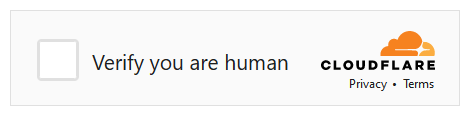
For the Non-interactive and Invisible modes, visitors are never prompted to interact. In Non-interactive mode, a loading widget can be displayed to warn visitors that Turnstile protects the form; however, the widget is not supported by Odoo.
Note
If the Turnstile check fails, visitors are not able to submit the form, and the following error message is displayed:

Click Create.
The generated keys are then displayed. Leave the page open for convenience, as copying the keys in Odoo is required next.
On Odoo
From the database dashboard, open the Settings app. Under Integrations, enable Cloudflare Turnstile, then click Save.
Open the Cloudflare Turnstile page, copy the Site Key, and paste it into the CF Site Key field in Odoo.
Open the Cloudflare Turnstile page, copy the Secret Key, and paste it into the CF Secret Key field in Odoo.
Click Save.
Tip
Navigate to in your Cloudflare account to View analytics and access additional settings.
reCAPTCHA v3 configuration
Warning
reCAPTCHA v3 may not be compliant with local data protection regulations.
On Google
Sign up or sign in to a Google account.
Open the reCAPTCHA website registration page.
Enter a Label for the website, e.g., example.com.
Leave the reCAPTCHA type set to Score based (v3).
Enter one or more Domains (e.g., example.com or subdomain.example.com).
Under Google Cloud Platform, a project is automatically created or selected if one already exists for the logged-in Google account. Click the field to select a project manually or rename the automatically created project.
Agree to the terms of service.
Click Submit.
The generated keys are then displayed. Leave the page open for convenience, as copying the keys in Odoo is required next.
On Odoo
From the database dashboard, open the Settings app. Under Integrations, activate Enable reCAPTCHA.
Warning
Do not uninstall the Google reCAPTCHA integration module, as it would also remove many other modules.
Open the Google reCAPTCHA page, click COPY SITE KEY, and paste it into the Site Key field in Odoo.
Open the Google reCAPTCHA page, click COPY SECRET KEY, and paste it into the Secret Key field in Odoo.
Change the default Minimum score (
0.70) if necessary, using a value between0.00and1.00. The higher the threshold is, the harder it is to pass the reCAPTCHA, and vice versa.Click Save.
See also
Interpret reCAPTCHA scores - Google documentation
You can notify visitors that reCAPTCHA protects a form. To do so, navigate to the form and open the website editor. Then, click somewhere on the form, go to the Style tab, and, in the Block section, enable Show ReCAPTCHA Policy.

Note
If the reCAPTCHA check fails, the following error message is displayed:

Tip
Analytics and additional settings are available on Google’s reCAPTCHA administration page. For example, you can receive email alerts if Google detects suspicious traffic on your website or view the percentage of suspicious requests, which could help you determine the right minimum score.
Adapted from the Odoo 19.0 User Documentation for DigitsCode customer support. © Odoo S.A. DigitsCode capabilities remain in the DigitsCode Capabilities category.