TikTok Shop connector configuration
Sales · Sales
TikTok Shop connector configuration
This guide explains how to set up the TikTok Shop Connector in Odoo to integrate TikTok Shop Seller accounts and manage multiple marketplaces efficiently. Follow these steps to configure the account, synchronize the product catalog, and prepare the shop for go-live.
Prerequisites
Configuring a TikTok Shop Connector requires:
A TikTok Shop Seller account.
A valid email address and password for the TikTok Shop Partner Center.
A brief description of the integration purpose.
An Odoo database URL and tester account credentials.
Note
The TikTok Shop Partner Center account used for API access is separate from a TikTok Shop Seller account.
Create a TikTok Shop Partner Center account
Navigate to TikTok Shop Partner Center, and go to the TikTok Shop platform. Log in with the TikTok account or create a new one if needed.
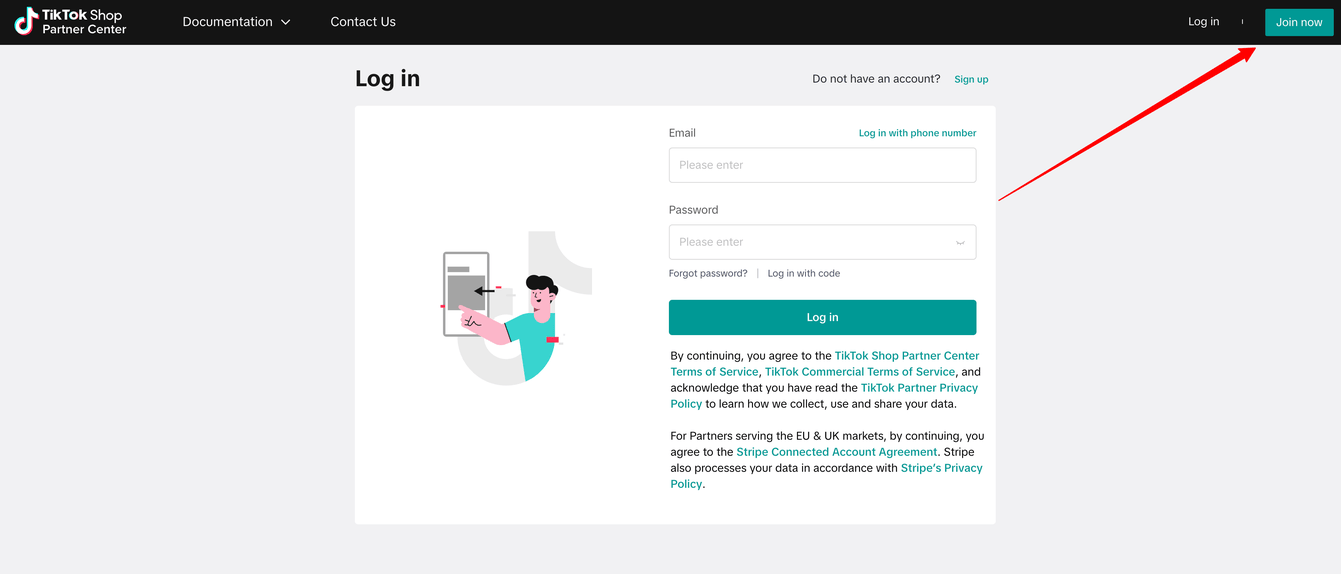
Once logged in, select Add category and market and fill in all the information. Choose App developers (ISV) as the Business category. Fill the registration region and target market, then click Next.
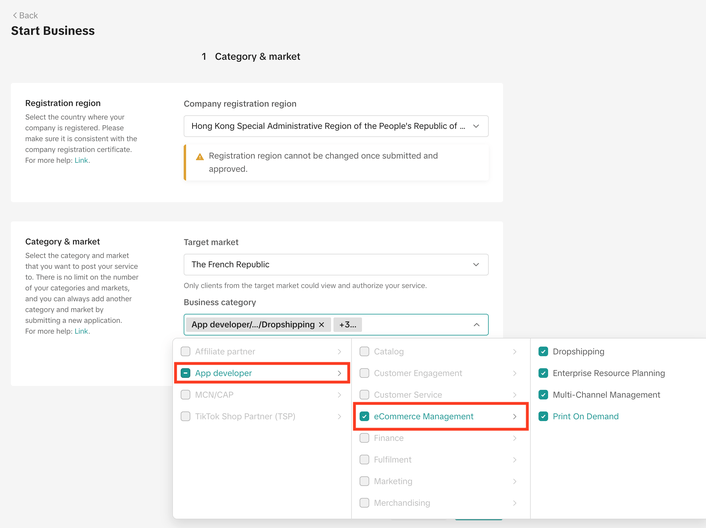
Fill the Partner Name and contact email, then click Get app key now. Submit the application and wait for approval.
Create an app on TikTok Shop Partner Center
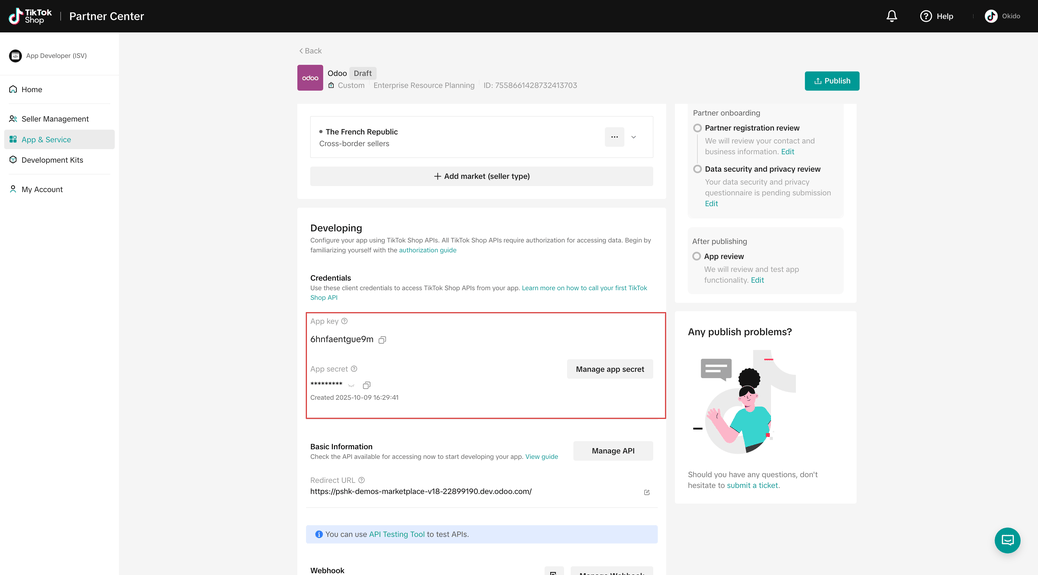
To obtain the Service ID, App Key, and App Secret for Odoo
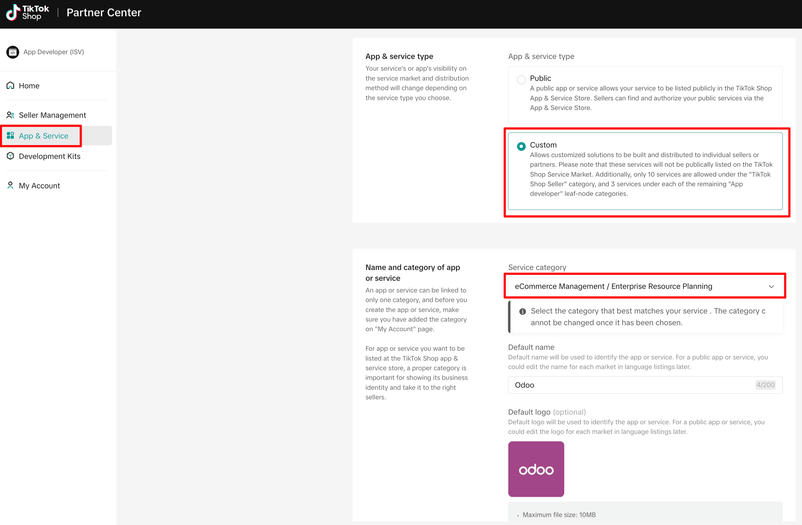
integration, log in to the TikTok Shop Partner Center, navigate to
on the sidebar. Click Manage next to the app name.
Choose Custom as the App & service type. Select eCommerce
Management / Connectors as the Service category. Enter the name of the app and market.
Ensure Enable API is ON. Enter the redirect URL as https://<your database url>.odoo.co
m/tiktok/return_from_authorization.
Go to Manage API in the created app.
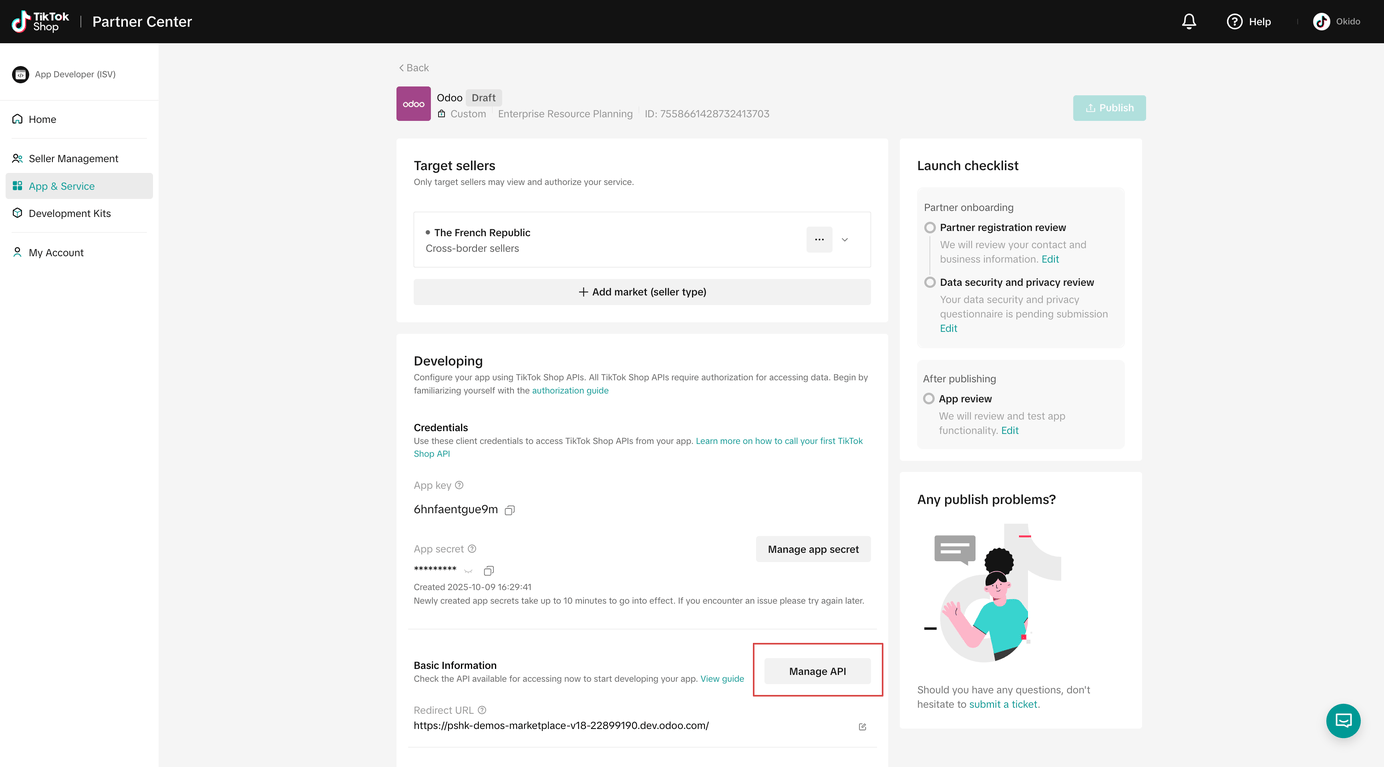
Make sure to enable these services:
Finance Information,
Fulfillment Basic,
Logistics Basic,
Order Information,
Product Basic,
Product Modify,
Shop Authorized Information,
and Global Shop Information.
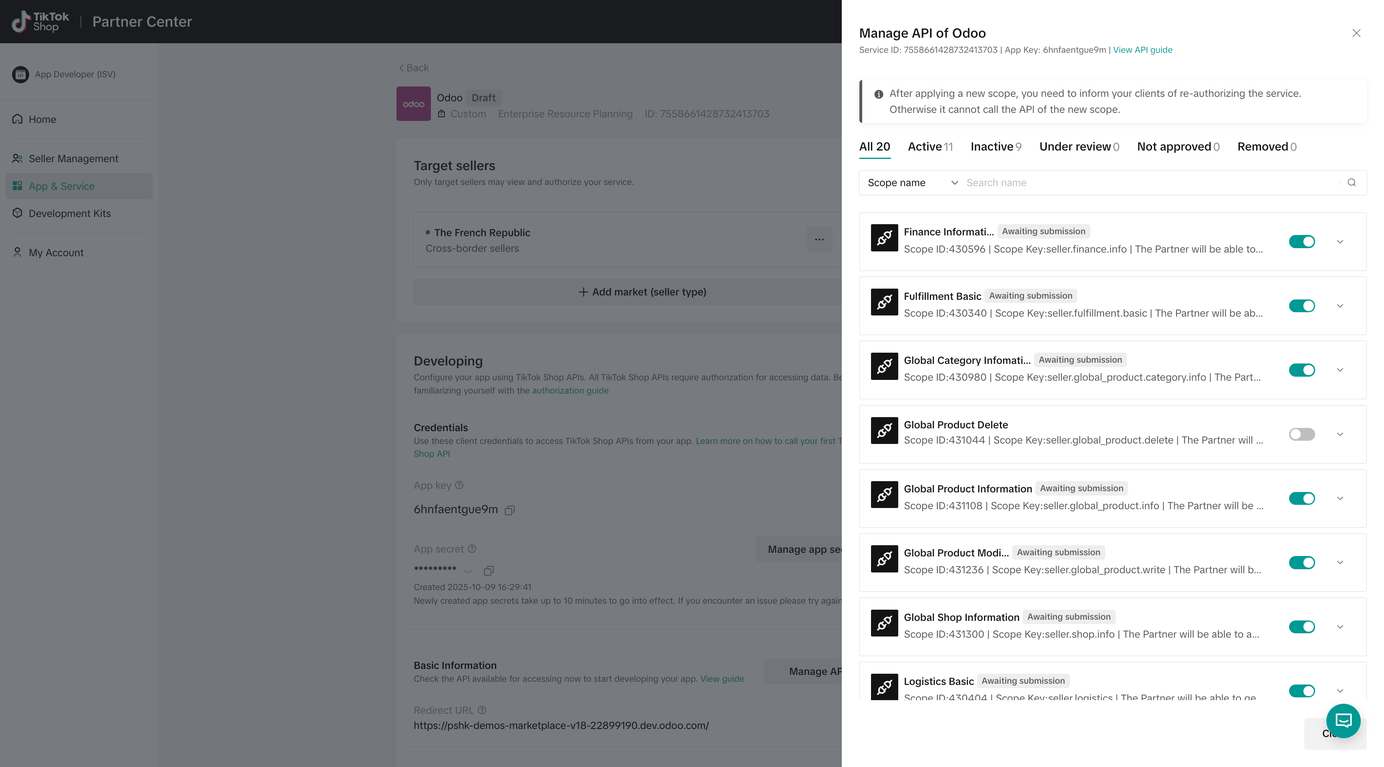
For newly created accounts, it may be necessary to submit the app for review before enabling API usage. Click Publish App to generate a new API key. Take the Service ID, App key, and App secret of the app.
Connect TikTok Shop seller account to Odoo
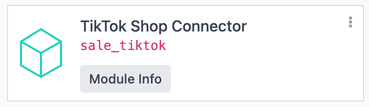
Go to Odoo’s Apps module, search for the TikTok Shop Connector module, and click Activate to install it.
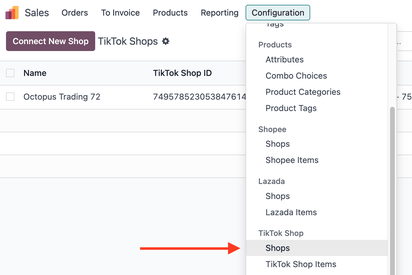
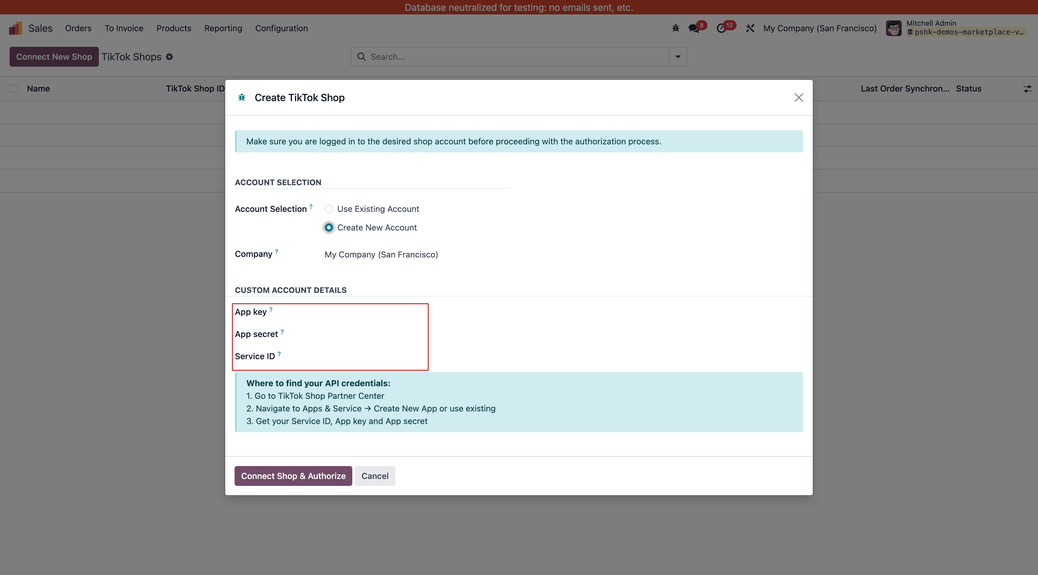
Once installed, activate the feature by going to . Click Connect New Shop.
Fill in the App Key, App Secret and Service ID.
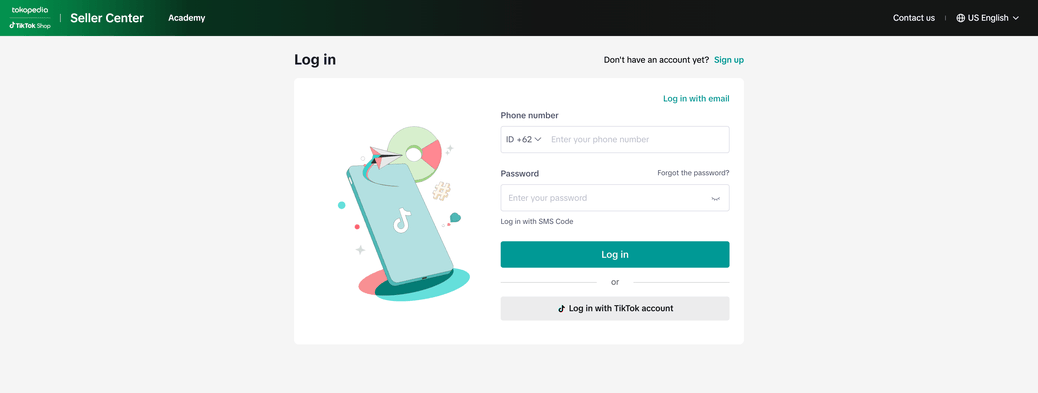
The system redirects to an authentication page to connect the newly created app to the TikTok Shop seller account. Ensure the login credentials match the specific TikTok Shop account intended for connection and complete the authentication process.
Upon completion, the system redirects back to Odoo. Click the Re-authorize Shop button to refresh the authorization and get a new Refresh Token.
Configure shop before go-live
Navigate to . Select the TikTok account and configure the FBS Warehouse field to limit stock fetching to specific warehouses. Enable synchronizing inventory in shop settings to push stock levels to TikTok Shop.
Use the Sync Catalog button in Odoo to automatically fetch active TikTok Shop products. Shipping labels, orders, inventory and product catalogs can be manually synced using their respective buttons on the shop configuration page.
Adapted from the Odoo 19.0 User Documentation for DigitsCode customer support. © Odoo S.A. DigitsCode capabilities remain in the DigitsCode Capabilities category.