Lazada Connector configuration
Sales · Sales
Lazada Connector configuration
This guide explains how to set up the Lazada Connector in Odoo to integrate your Lazada Seller account(s) and manage multiple marketplaces efficiently in Southeast Asia. Follow these steps to configure your account, synchronize your product catalog, and prepare your shop for go-live.
Prerequisites
Before configuring the Lazada Connector, ensure you have:
A Lazada Seller account (Personal Self-Developed or Enterprise Self-Developed).
A valid email address and phone number for verification.
A digital copy of your business license (for Enterprise Self-Developed accounts).
A brief description of your integration purpose (e.g., “Connecting Odoo ERP to our Lazada store for order and inventory synchronization”).
Note
The Lazada Open Platform account for API access is separate from your Lazada Seller account.
Create a Lazada Open Platform account
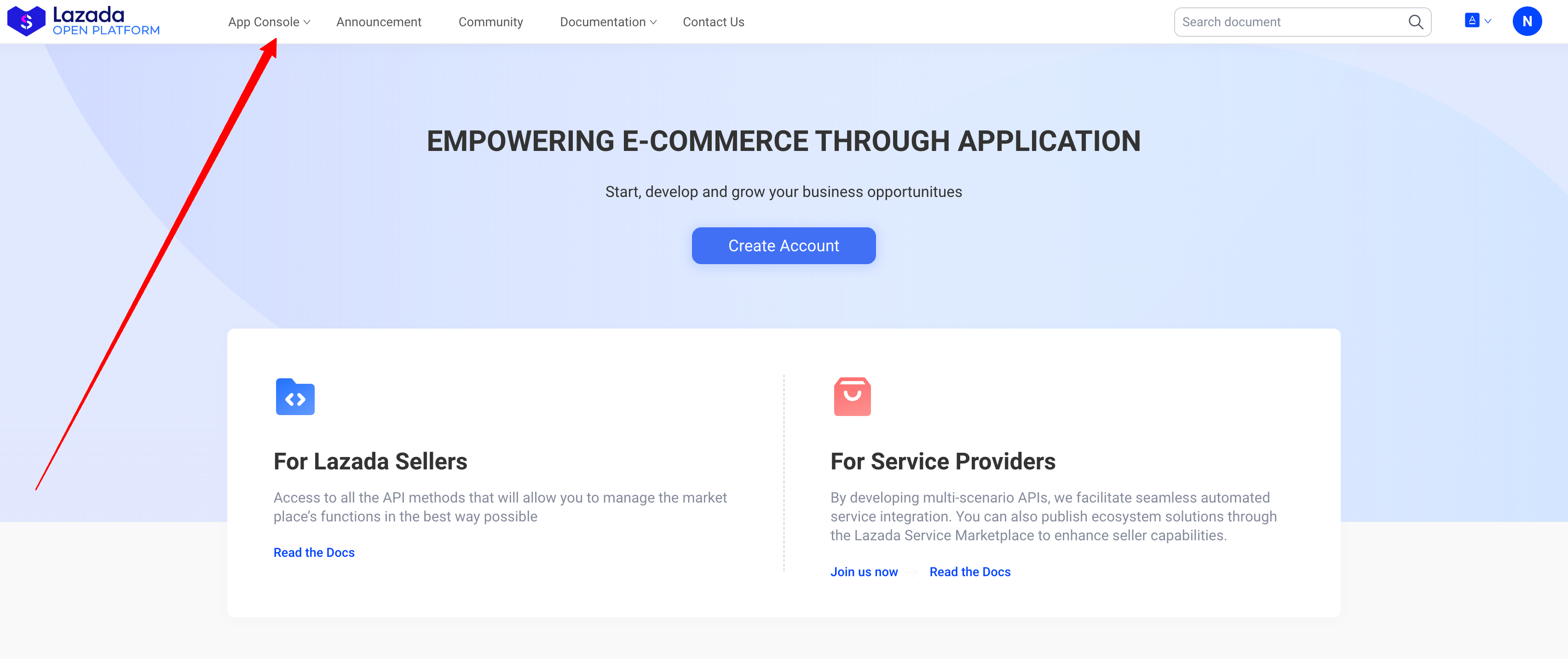
Open Lazada Open Platform and click Create Account or Sign Up.
Navigate to the profile and in the Basic information, begin filling in the fields to start the registration process.
Under account information, select one of the following selections for Partner type:
Personal Self-Developed: For individuals without a business license.
Enterprise Self-Developed: For businesses with a registered license.
Important
Do not select other service provider types, as they are not applicable for Odoo integration.
Continuing on the same page, fill out the following information to complete registration under the Personal information section:
Enter your phone number, email, and address. Complete any verification steps (e.g., OTP via SMS).
For Enterprise Self-Developed accounts, upload your business license.
Provide a brief introduction (e.g., “Integration for Odoo ERP to sync orders, inventory, and fees with Lazada”).
After completing the details, click Submit to submit your profile details. Approval typically takes a few hours to a couple of business days. Check your registered email for confirmation or requests for additional information.
If approval status is rejected, review the reason in the notification email or on the Lazada Open Platform Console. Edit and resubmit as needed.
Tip
Ensure profile details are accurate to avoid delays. Common issues include incorrect account type selection or missing business license documents.
Create an app on Lazada Open Platform
To obtain the App Key and App Secret for Odoo integration:
Log in to the Lazada Open Platform Console, navigate to , , and click Create App.
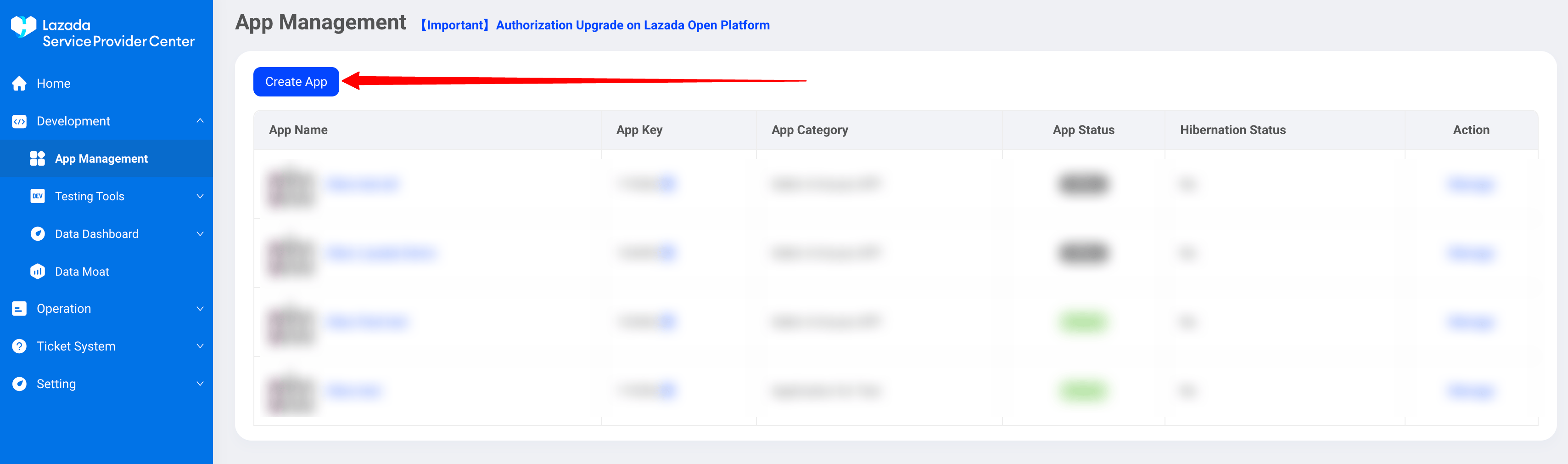
For App Category, select Seller In-house APP.
Fill out the rest of the application form:
Provide your Odoo database URL and tester account credentials (name and password).
For APP IP Address Management, select IP address(es) unavailable and enter “The application is cloud-hosted.”
Click Submit to process the application. The app creation takes approximately 24 hours. Once approved, note the App Key and App Secret.
Connect Lazada Seller account to Odoo
To connect a Lazada Seller account in Odoo, navigate to App from your Database, search for Lazada, and click Activate.
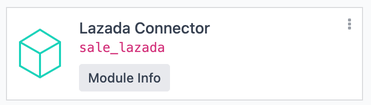
Enable Lazada Sync by navigating to .
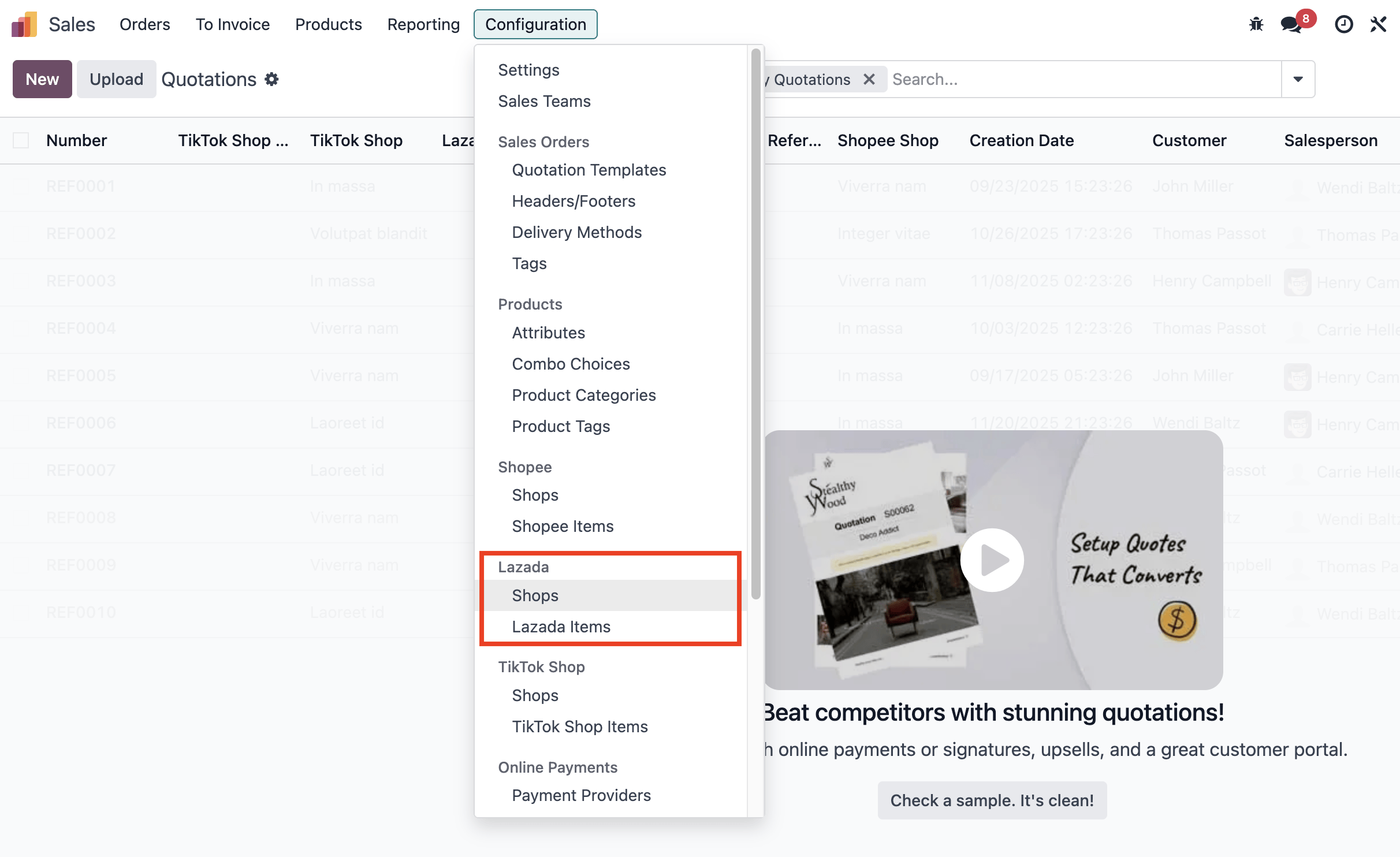
Connect a Lazada Seller account:
Go to and click Create New Shop.
Enter a name (e.g., “Lazada Malaysia”), App Key, App Secret, and select the marketplace (e.g., Lazada.com.my).
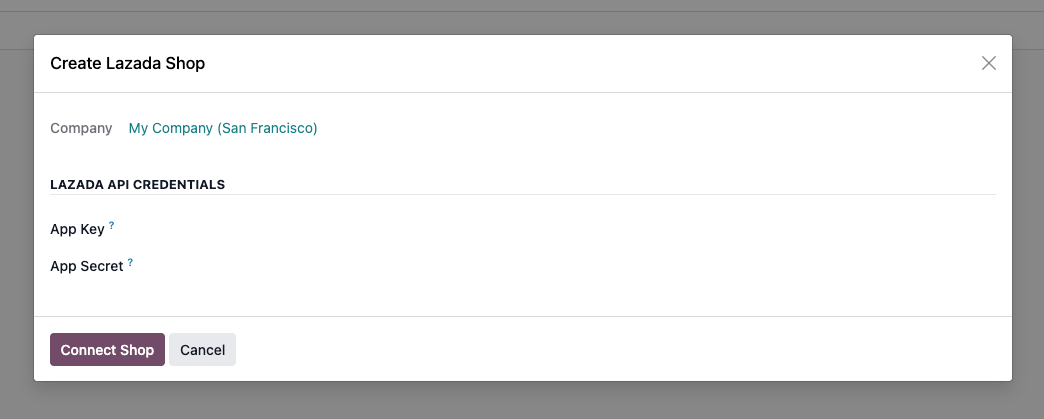
Link the account by doing the following:
Click Create Shop & Authorize.
Click the button to redirect to the Lazada login or consent page. Log in with your Lazada Seller account credentials and grant Odoo access.
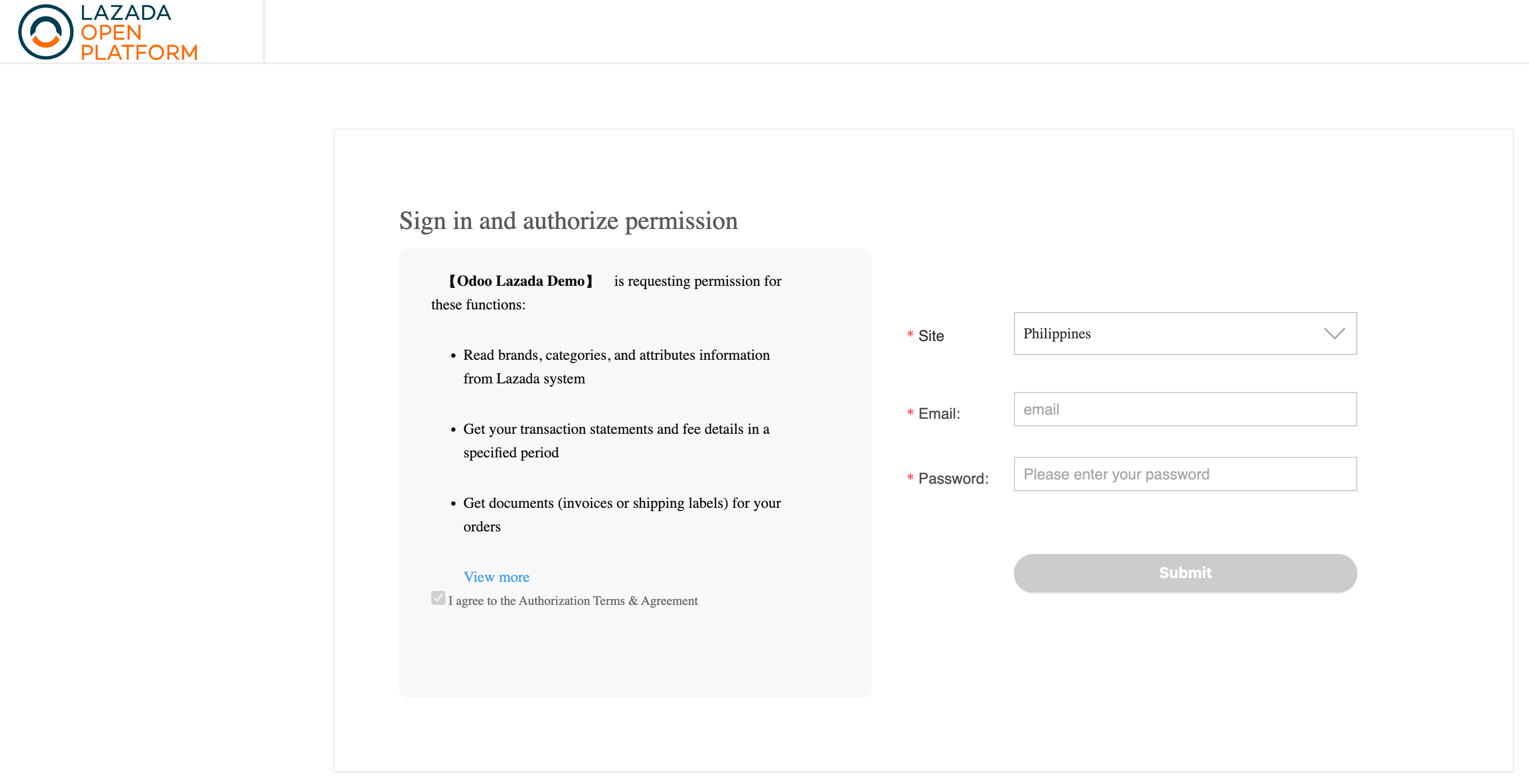
Upon successful authorization, Odoo lists available marketplaces under the Lazada Shops tab.

Manage Marketplaces:
Newly added marketplaces are automatically synchronized. To disable synchronization for specific marketplaces, remove them from the list.
Avoid synchronizing the same shop multiple times to prevent duplicate orders.
Important
To maintain data integrity, ensure each shop is synchronized only once. If synchronization fails, try manually fetching orders before reconfiguring.
Configure the shop before go-live
Set up warehouses:
Navigate to .
Select the Lazada shop and configure the FBM Warehouse field to limit stock fetching to specific warehouses.
By default, all accounts use the same Lazada stock location. To isolate stock for a specific marketplace, create a separate account registration and assign a unique stock location.
Tip
To manually trigger re-initialization of the catalog, clear the Last Catalog Synchronization before clicking Sync Catalog.
Synchronize the product catalog:
The product catalog is automatically matched during the first synchronization. However, it is recommended to synchronize the product catalog in the following scenarios:
Use the Sync Catalog button in Odoo to automatically fetch active Lazada products daily.
For new Odoo databases, export the Lazada catalog from Lazada Seller Center (including SKUs). Import into Odoo via , mapping SKUs to the Internal Reference field.
For existing Odoo products, export both Lazada and Odoo catalogs, map SKUs to Internal References in a spreadsheet, and import the updated mappings back into Odoo.
Tip
Test catalog synchronization with a small product set to verify SKU mappings before full import.
Adapted from the Odoo 19.0 User Documentation for DigitsCode customer support. © Odoo S.A. DigitsCode capabilities remain in the DigitsCode Capabilities category.